Multichat for helpdesk agents
Multichat is the page where helpdesk agents handle live chats. Agents see the clients waiting in their queues, chat with several clients at the same time, and use the AI Agent Assistant to transfer chats or run actions.
Open Multichat and sign in
- In the menu, select Land AI Agent > Multichat.
- In Version, select MultiChat. The agent page opens, and the AI Agent greets the agent.
- Under the agent name, select Log in. The AI Agent confirms "You are now logged in!", and the agent joins the pool of available agents.
To leave the pool, select Log out. If the agent has ongoing live chats, Druid signs them out after those chats end.
If a user has only the Helpdesk Agent role, the Druid Portal shows only Multichat when they sign in.
Multichat layout
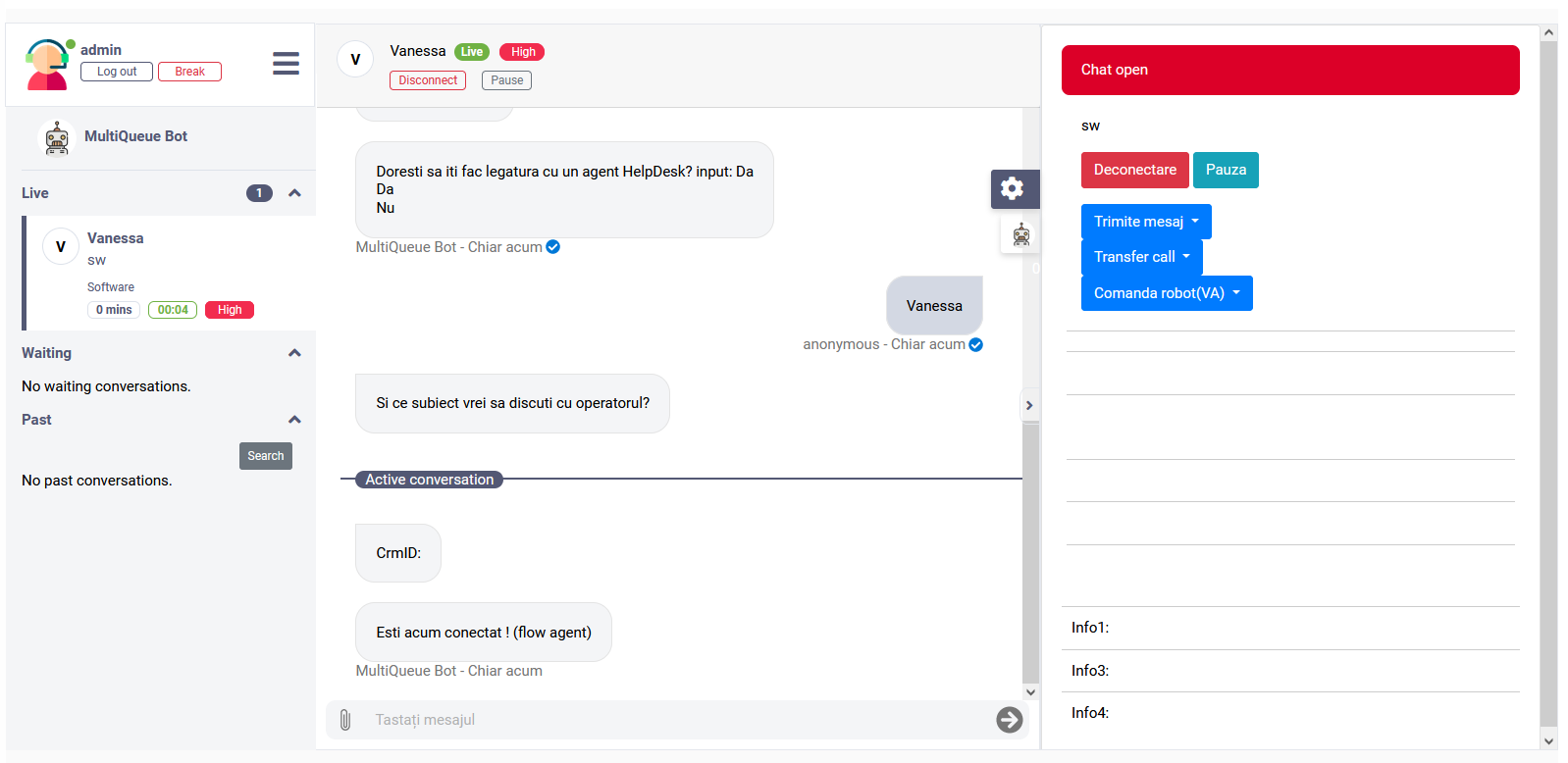
The Multichat page has three areas:
| Area | Contents |
|---|---|
| Left panel | The agent's name and status, the Log out and Break buttons, the Live conversations, the Waiting clients, and, when Show past conversations is on, the agent's Past conversations. Select the menu icon to collapse the panel. |
| Chat area | The transcript of the client's earlier conversation with the AI Agent and with other agents, followed by the active live conversation. The Active conversation label separates them. |
| Right panel | Backchannel events (selected by default), which show the client information and buttons added by the Live chat client connected flow. The AI Agent Assistant, where the agent talks to the AI Agent. Custom tabs for web views and forms. Select the arrow icon to collapse the panel. |
Handle a live chat
To pick up a waiting client, select the client in Waiting, and then select Connect. With automatic allocation, Druid connects clients to the agent without this step.
During a live chat, the agent uses the buttons at the top of the chat area:
- Pause puts the conversation on hold. The Live chat conversation idle timeout mins timer stops, so Druid doesn't end the chat. Druid sends the Set up Live Chat in the chat. The timer starts again when the agent sends a message. Client messages still reach the agent during the pause.
- Disconnect ends the live chat. Druid runs the Live chat agent disconnected flow, in which the agent selects a resolution.
Enable file upload temporarily
If file upload is turned off for clients, the agent can turn it on for the current live chat only, for example to receive a document.
- During the live chat, select Enable file upload.
- Select the file types the client can upload.
- Select Enable file upload again. The client can now upload files of the selected types.
- When you have the files, select Disable file upload.
This setting applies only to the current live chat. It doesn't change the AI Agent's file upload configuration.
Reconnect with a past conversation
Agents can reopen a past live chat, for example to tell the client that a task is done. This works on persistent channels: WhatsApp, Facebook, Telegram, Viber, Google Chat, Instagram, Slack, and Twilio SMS.
Agents can reconnect when both these conditions are met:
- The client isn't in a conversation with the AI Agent.
- The channel's limit since the client's last message hasn't been reached, for example 24 hours on WhatsApp.
To reconnect:
- In the left panel, under Past, find the conversation. The panel shows the agent's last 20 past conversations.
- Select Activate.
To find an older conversation, or another agent's conversation, select Search under Past, enter the filters, and then select Activate next to the conversation.
WhatsApp conversations older than 24 hours are labeled > 24h. If the last message is older than 24 hours, the agent can't type in the conversation until they send a WhatsApp template message.
Talk to the AI Agent Assistant
The AI Agent Assistant is a separate conversation between the agent and the AI Agent. It's available in every live chat, whatever your queue setup. Agents use it to ask for information, run actions, or transfer the chat, for example by typing "transfer chat".
- Each live chat has its own assistant conversation, with its own conversation ID.
- The client's context data is copied to the assistant conversation, so the assistant knows which client the agent is talking to.
- To detect the assistant conversation in the Welcome flow, check
[[ChatUser]].IsCommandChannel.
Agent page JavaScript functions
In the backchannel steps of the Live chat client connected flow, you can use these JavaScript functions to add buttons to the agent page.
| Function | Description |
|---|---|
sendMessage(text)
|
Sends a predefined message to the client. |
sendMessage(text, true)
|
Puts a predefined message in the agent's input box, so the agent can edit it before sending. |
sendMessageToBot(message)
|
Sends a message to the AI Agent Assistant, for example to trigger the transfer flow. |
changeChatVisibility(isVisible)
|
Set to false to hide the AI Agent Assistant option. |
loadLeftContent(id), loadCustomButtons(buttons) |
Add tabs for web views and forms. See Live Chat Advanced flows. |
The following example adds a drop-down of predefined messages that the agent can edit before sending:
<div class="dropdown-menu" aria-labelledby="dropdownMenuButton">
  <a class="dropdown-item" onclick='sendMessage("Thank you for waiting! How may I help you?", true)'>Thank you for waiting</a>
  <a class="dropdown-item" onclick='sendMessage("Thank you for your time. Please give us your feedback. Have a nice day!", true)'>Ask for feedback</a>
</div>
The following example adds a Transfer button:
<button type="button" onclick='sendMessageToBot("Transfer")' class="btn btn-danger">Transfer</button>Breaks and log-out
To take a break, the agent selects Break under their name. The break starts when all the agent's live chats have ended. While the request is pending, the agent can select Cancel.
During the break, a pop-up shows the time spent on break. To end the break, the agent selects I'm back. Druid doesn't allocate clients to agents on break.
When an agent selects Log out with ongoing live chats, or while automatic allocation is active, Druid creates a log-out request. The agent is signed out when the live chats end.
After a break or log-out request, the Connect button is disabled or hidden in the waiting list, so the agent can't pick up new clients. It comes back if the agent cancels the request. On agent pages installed on your own infrastructure, this behavior requires an agent page upgrade.
Talk to clients by voice
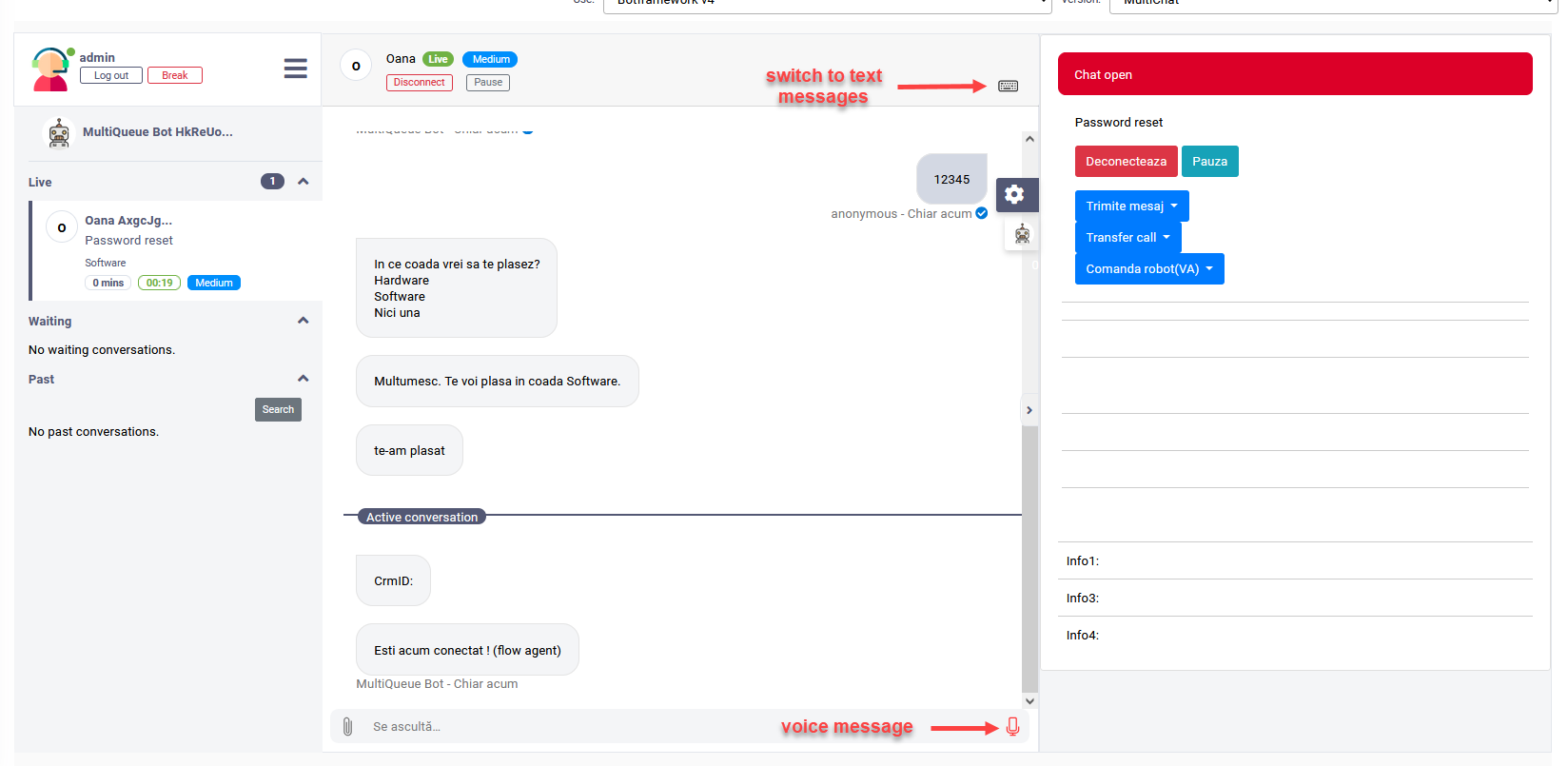
When the Voice channel is turned on in the AI Agent channel settings, agents can talk to clients by voice in Multichat. Druid translates voice messages in real time when the agent and client use different languages.
- A microphone icon appears in every live chat, except the AI Agent Assistant conversation. Select it to talk.
- To switch between voice and text input, use the keyboard mode toggle.
Translate live chats in real time
With real-time machine translation, the client and the agent can each write in their own language. The AI Agent translates each message before showing it. For example, a client writes in French and the agent answers in English.
The translation uses SDL Machine Translation Cloud, Azure Translator, or an LLM, and supports more than 100 language pairs.
To use real-time translation in Live Chat:
- Have an active SDL, Azure Translator, or LLM account.
- On the AI Agent, turn on machine translation and configure the translation service for conversation-time translation.
- On the AI Agent, turn on and configure language change detection.
For the configuration steps, see Using Machine Translation. Agent Assist also supports machine translation.
 Related Topics